
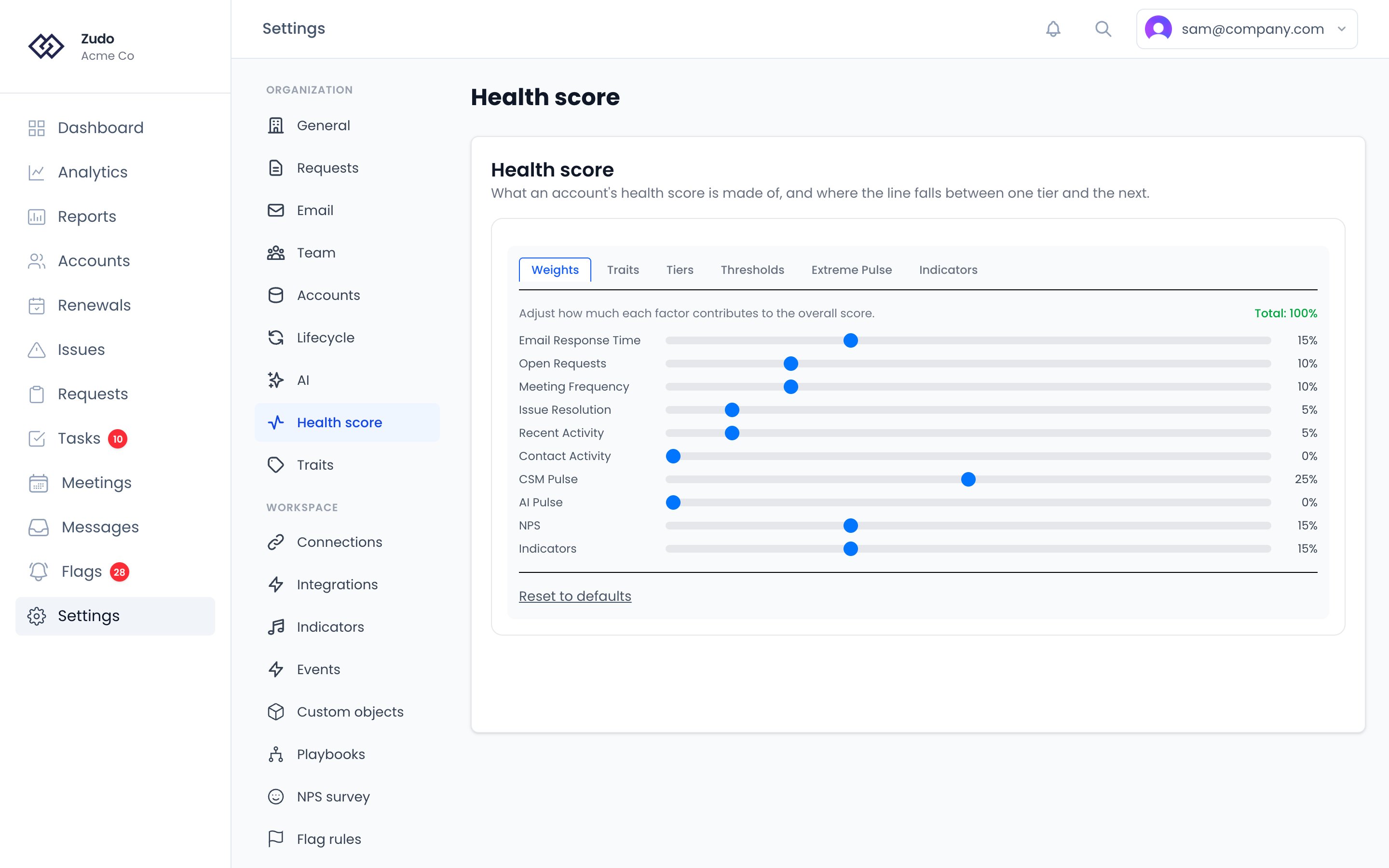
Factor Weights
Each of the six scoring factors contributes a percentage of the overall 0–100 score. Adjust weights to reflect what matters most to your team. Weights should sum to 100%; setting a factor to 0% disables it. Without CSM Pulse:Contact Activity and Indicators default to 0%. Opt into them once you have the underlying data flowing —
Vitally / API for contact activity, Segment or PostHog for
indicators. See Indicators below for the participation flow.
If an account has no CSM Pulse (or it’s older than 90 days), the weight is redistributed proportionally across the other factors — no account is penalized for missing a pulse.
NPS starts at 0%. Give it a weight and accounts with an NPS answer from the last 365 days are
rescored on the next run — the customer’s own verdict, beside the factors that infer it. Accounts with no answer have
the weight redistributed, so nobody is penalized for a survey they were never shown. Expect scores to move once when
you turn it on.
Tier Configuration
Health tiers map score ranges to labels and colors used throughout the app. Each tier has aminScore, a label, and a hex color.
Tier boundaries also affect Extreme Pulse — if you raise the Healthy threshold, the floor for a pulse=10 override rises to match.
Scoring Thresholds
Thresholds define what counts as excellent, good, fair, or poor for each factor. Tune these to match your team’s service level expectations. Open Requests levels include the number you set: with Excellent at 1, an account with no open requests or one open request scores Excellent.Extreme Pulse Settings
When a CSM gives an account a pulse of 1 or 10, that high-conviction signal overrides automated metrics:- Pulse = 1 → account lands in Critical, regardless of other metrics
- Pulse = 10 → account lands in Healthy, regardless of other metrics
Options
Amplifier example: With a base CSM Pulse weight of 20% and a 1.5× amplifier, the effective weight for an extreme score becomes 30%, giving the CSM’s signal more pull before the tier guarantee is applied.
Why extreme pulse expires faster: Extreme ratings carry more risk of becoming stale. The shorter window (30 days by default) encourages re-evaluation of flagged accounts.
When amplification is active on an account, an indicator appears on the health score gauge:
- ↑ (green) — boosted by pulse = 10
- ↓ (red) — reduced by pulse = 1
Traits
The Traits tab counts any trait toward health, each as a factor of its own: a return-on-investment figure, seats in use against seats bought, sessions this month, a yes/no flag. Any trait that holds a number or a yes/no can be added, whether it’s synced from an integration, filled in by your team, a Zudo trait such as MRR, or a smart trait Zudo calculates. What each one measures is explained in How health scoring works.1
Add a trait
Choose it from Add a trait…. The menu groups traits by where they come from, the same as the rule builders, and
lists only traits that hold a number or a yes/no. It starts at 0% of the score.
2
Say how it scores
For a number, choose Higher is better or Lower is better and set Excellent, Good, Fair and
Poor. A value at or past each scores 100, 80, 60 or 40; anything short of Poor scores 20. The four have to run
in order — falling from Excellent to Poor when higher is better, rising when lower is better — or the page tells you
which trait to fix. For a yes/no, set what each answer is worth (100 and 0 to start).
3
Give it a share
Set Share of score on the trait, or its slider on the Weights tab — they’re the same setting. Take the share
from other factors so the total stays at 100%.
4
Save
Scores pick it up on the next health calculation. Each account’s breakdown then lists the trait by name, with the
value that was scored.
An account with no value for a trait is scored on its other factors, with the trait’s share redistributed among them.
Remove takes a trait out of the score and its share with it, so rebalance the weights before you save.
Indicators
The Indicators tab lets you fold any of your saved Indicators into the health score as a single weighted factor. Useful when product-usage signals like Power user or Active in last 7 days should drive the health number — not just inform it.Setup flow
1
Set the Indicators weight
On the Weights tab, set Indicators above 0. This unlocks the Indicators tab. The slider participates in
the 100% weight sum just like any other factor.
2
Pick which indicators participate
On the Indicators tab, check each indicator you want to include in the composite. Indicators come from Settings
→ Indicators.
3
Set sub-weights
Each included indicator gets a Sub-weight input. Sub-weights are relative within the composite — they don’t sum
to 1 — they just determine how much each indicator pulls relative to its peers. Equal weights make every indicator
count the same.
4
Configure scoring per indicator
How each indicator’s value maps to a 0–100 component score:
- Yes / no indicators — set the score for
true(default 100) and the score forfalse(default 0). - Number indicators — set four thresholds (excellent / good / fair / poor) that map to 100 / 80 / 60 / 40 / 20,
plus a Direction dropdown (
Higher is betterorLower is better).
5
Save
Changes apply on the next health score calculation. Trigger a recalc by saving the modal — the next nightly run picks
up the new shape.
How the composite scores
Per indicator:- Boolean →
value === true ? trueScore : falseScore(defaults100 / 0) - Number → threshold curve. Example with
direction: higher_is_betterandexcellent: 50, good: 20, fair: 5, poor: 0:value ≥ 50→ 100value ≥ 20→ 80value ≥ 5→ 60value ≥ 0→ 40- else → 20