
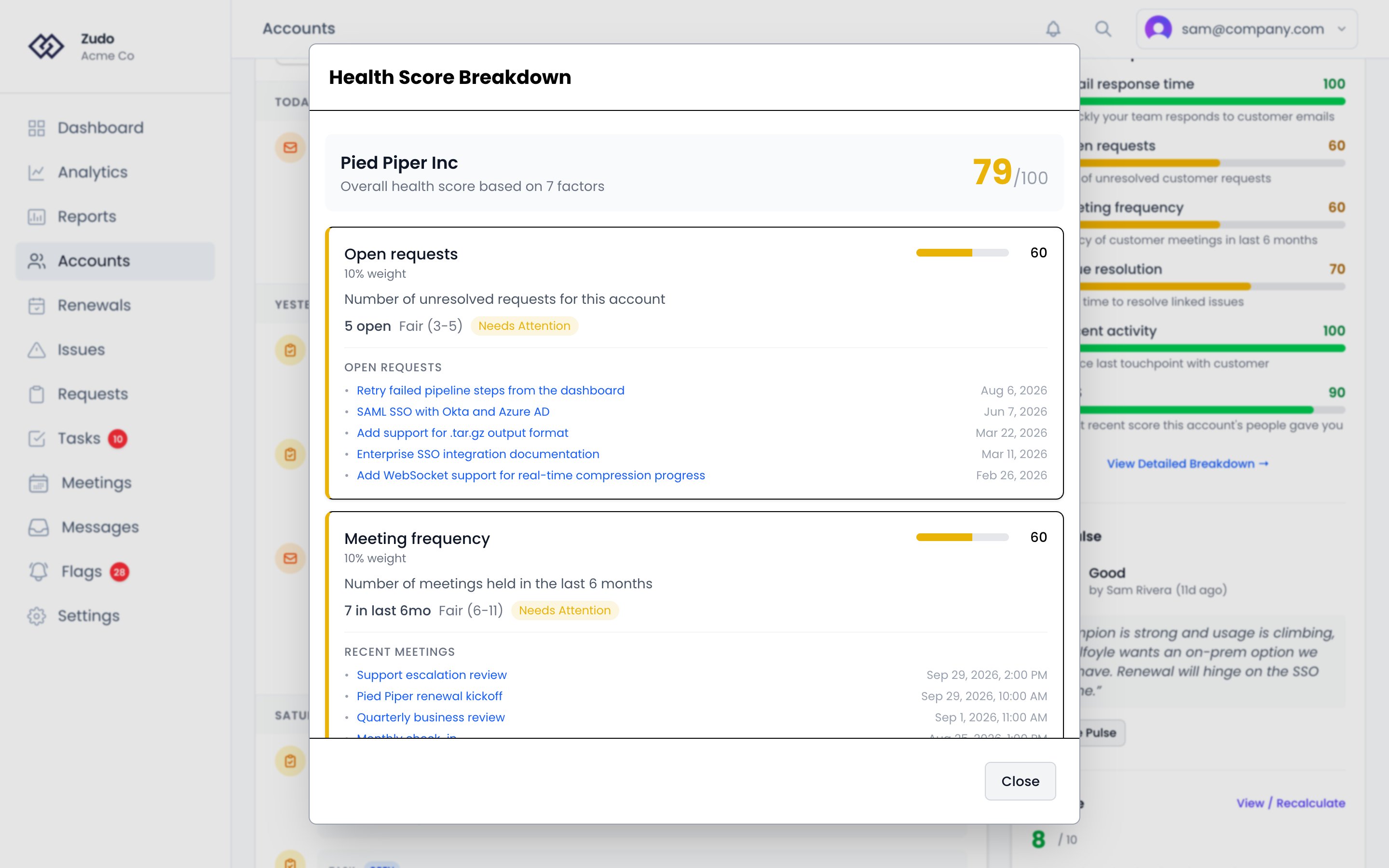
The factors
Email response time
How quickly your team responds to customer emails over the last 90 days.No email threads? This factor defaults to 50 (neutral). Response time is measured against your configured business
hours, so nights and weekends don’t penalize you.
Open requests
The number of unresolved feature requests linked to the account.Meeting frequency
How many meetings you’ve had with the account in the last 6 months.Zero meetings scores 40, not as missing data. Regular engagement is expected.
Issue resolution
Average days to resolve engineering issues linked to this account’s requests over the last 90 days.No issues resolved in 90 days? Scores 70 — having no issues is generally a positive signal.
Recent activity
Days since the last touchpoint (email or meeting) with this account.Contact activity
Days since the account was last active. Where that date comes from is configurable per organization under Settings → Organization → Last active — you order the sources (contact last-seen, Segment or PostHog product events, or a date trait such as one synced from Vitally) and the first with a value wins. With nothing configured it uses the newest contact last-seen date. A manual override set via the API always takes priority over every configured source.No contact activity data? This factor is excluded and its weight is redistributed across the remaining factors.
NPS
The most recent NPS answer from someone on the account, scored out of ten. Every other factor here is a proxy for whether the customer is happy; this one is the customer saying so.
Scored on the raw answer rather than by band, which is a deliberate choice. A 6 is a detractor and a 7 is not, so
banding would score them 0 and 100; this scores them 60 and 70. The bands are a convention for the NPS calculation,
not a claim that a 6 is as bad as a 0 — and a CSM reading “they said 6” expects a middling contribution, not a
catastrophic one. Segments, flags and the account page still read the band.
Only answers from the last 365 days count. Past that an answer stops counting rather than fading: a score from two
years ago is not weak evidence about today, it is evidence about a different product. A year rather than something
shorter because the survey’s own default waits three months between asking the same person, so a tighter window would
leave this factor dark on an account that is answering exactly as intended.
Never been answered, or no answer inside the window? This factor is excluded and its weight is redistributed across
the remaining factors. An account nobody has answered for is scored on everything else, not penalized for a survey it
was never shown.
Indicators
A composite of any number of Indicators you’ve configured to participate in scoring. Indicators are predicates over your product-usage events — Power user, Active in last 7 days, Logins last 30 days, etc. Each participating indicator is scored 0–100:- Yes / no indicators —
truecontributes a configurable score (default 100),falsecontributes a configurable score (default 0). - Number indicators — scored by a threshold curve you set (excellent / good / fair / poor → 100 / 80 / 60 / 40 / 20), with a direction toggle for
higher is bettervslower is better.
The Indicators factor is excluded from the score when no participating indicators have computed values yet — its
weight is redistributed across the other factors, same as Contact Activity behavior.
Traits
Any trait you choose, counted as a factor of its own. The built-in factors measure what Zudo sees for itself — replies, meetings, requests. The number that says most about whether a customer stays is often one only your business knows how to work out: the return a customer gets on your product, seats in use against seats bought, sessions against their plan. If it’s a trait — synced from an integration, filled in by your team, or calculated by a smart trait — it can count toward health. Each trait you add appears in the breakdown under its own name, with its own weight:- Number traits are scored on the same curve as everything else. You set excellent, good, fair and poor; a value at or past each scores 100, 80, 60 or 40, and anything short of poor scores 20. Choose whether higher or lower is better.
- Yes / no traits score what you say each answer is worth, 100 for yes and 0 for no unless you change them.
An account with no value for the trait is scored on its other factors: the trait’s weight is shared among them, the
way NPS works for an account nobody has answered for. A missing value is not counted as a bad one.
Default weights
Weights determine how much each factor influences the final score. Your admin can adjust these in Health Score Settings.Without CSM Pulse
Contact Activity, NPS and Indicators default to 0% — opt into them in Health Score
Settings once you have the underlying data flowing (Vitally / API for contact
activity, the in-app survey for NPS, Segment / PostHog for indicators).
With CSM Pulse
When a CSM Pulse is set and less than 90 days old, the weights shift to include your manual assessment:Parent accounts
A parent account has no activity of its own, so it isn’t scored on the factors above. It takes the scores of the accounts inside it: by default their average weighted by MRR, or optionally the lowest of them. A CSM Pulse set on the parent account is blended in as usual. See How a parent account is calculated.Health tiers
The final score maps to one of four tiers shown throughout the app:
Tier labels, score boundaries, and colors are all configurable in Health Score Settings.
Extreme Pulse amplification
When a CSM sets a Pulse of 1 or 10, Zudo applies special handling:- Pulse = 1 guarantees the account lands in the Critical tier, regardless of how good the automated metrics look.
- Pulse = 10 guarantees the account lands in the Healthy tier, regardless of how poor the automated metrics look.
Tier drop alerts
When an account’s health score drops into a lower tier (e.g. Healthy → Needs Attention), Zudo automatically creates a high-priority task to make sure it gets attention. These appear in your Flags and task list.Health tiers
The final score maps to one of four tiers, each with a color indicator:
Your admin can customize tier thresholds, labels, and colors to match your organization’s expectations.
CSM Pulse
CSM Pulse lets you inject your own qualitative read into the health score. When your gut tells you something the data doesn’t show — a sponsor leaving, a budget freeze, a surprise expansion — you can set a Pulse score (1–10) with a required note to document your reasoning. To set a CSM Pulse, navigate to the account page and find the CSM Pulse section. Enter a score from 1 to 10 and add a note explaining your assessment. Learn more about CSM PulseExtreme Pulse Amplification
When you set a Pulse of 1 or 10, Zudo treats this as a high-conviction signal and applies special handling:- Pulse = 1 guarantees the account lands in the Critical tier, regardless of how the automated metrics look.
- Pulse = 10 guarantees the account lands in the Healthy tier, even if the automated metrics are poor.
Tier drop alerts
When an account’s health tier drops — for example, from Healthy to Needs Attention — Zudo automatically:- Creates a task assigned to you titled “Health score dropped to [Tier] for [Account Name]”, with HIGH priority if the account dropped to Critical.
- Sends you an email notification with the account name, previous tier, new tier, current score, and a direct link to the account.
Alerts trigger only on tier drops. Tier improvements do not generate alerts.