
Object types
Every chart is built from one of six object types. Switch between them using the pill selector at the top of the page.
Switching object types clears the current chart builder so you start fresh.
Building a chart
Each chart is configured in a panel in the Chart Builder section at the bottom of the page.1. Select an object type
Use the pill selector at the top of the page to choose which object type to work with.2. Configure the X axis
The X axis is the dimension you want to group records by — for example, account name, request status, or a date field. Any trait except URL and email fields can be used as an X axis. When you select a date trait, additional date controls appear (see Date handling). For accounts, the fields are grouped by source. The Zudo group holds what Zudo knows about every account without anything set up: MRR, health score, CSM pulse and NPS, plus Lifecycle Status, Health Tier and CSM, Renewal Date and Days Until Renewal, Last Active and the activity counts. A status or tier reads by your organization’s name for it, so a chart of MRR by Lifecycle Status shows your labels.3. Configure the Y axis
The Y axis is the numeric value to measure per group — for example, MRR, duration, or message count. This field is optional: if you leave it empty, the chart defaults to a count of records in each group. Only numeric traits appear in the Y axis selector.4. Choose an aggregation
When a Y axis is set, select how to combine values within each group:5. Select a chart type
Pick the visual format using the chart type pills. You can switch chart types at any time without losing your other settings.Chart types
Number / KPI charts
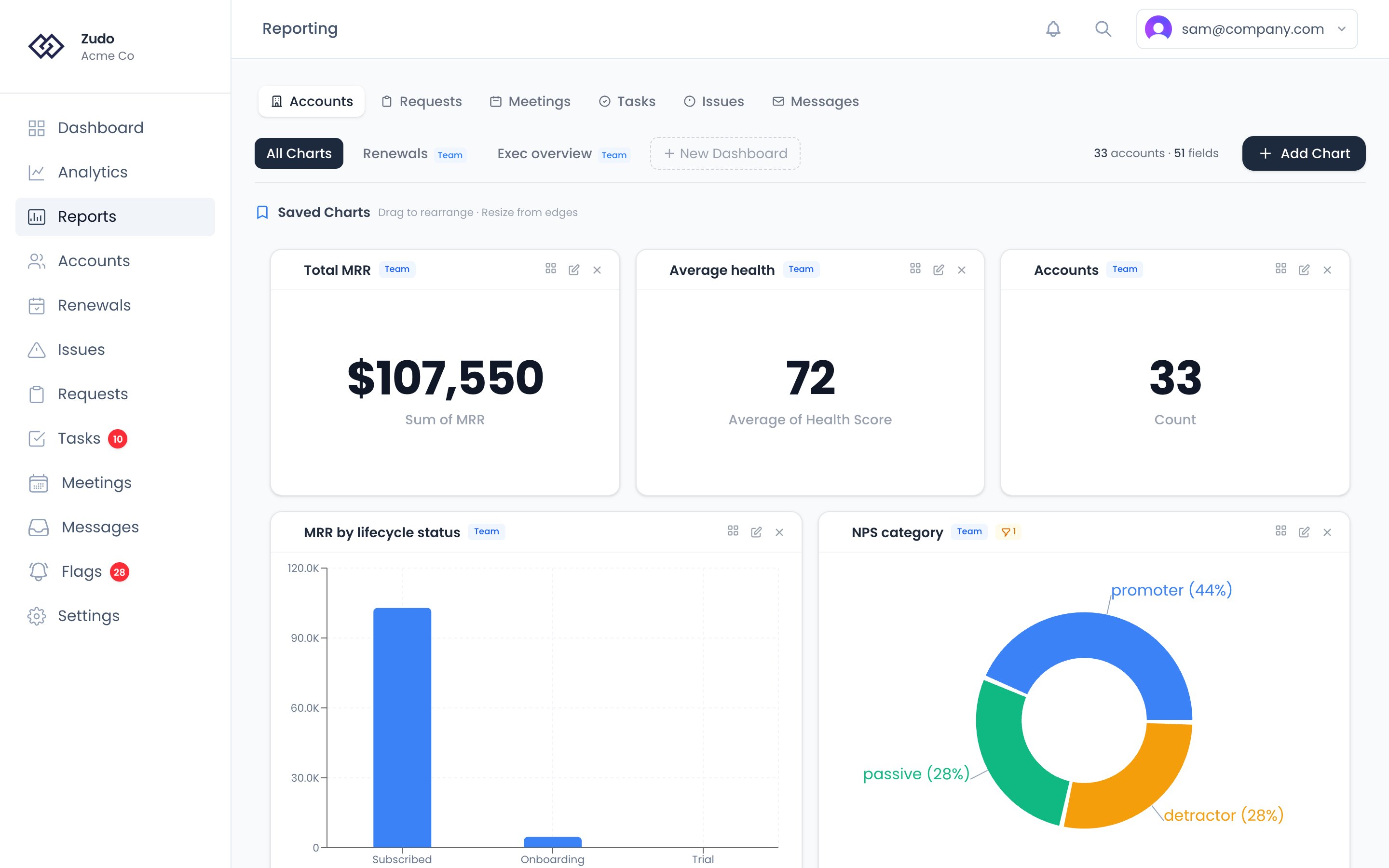
Select Number as the chart type to display a single aggregate value — useful for KPIs like total MRR, average health score, or open request count.- Choose a Y axis and aggregation to compute the value (e.g. Sum of MRR).
- If you leave the Y axis empty, the chart shows a simple count of records.
- Use the format dropdown to control how the number displays:
Date handling
When your X axis is a date field, the chart groups records into time buckets. Two additional controls appear: Interval — controls the bucket size:
Auto interval picks the best bucket size based on how wide your date range is:
Date range — optional From and To inputs that clip the dataset to a specific window before aggregation. Click Clear range to remove the filter and show all data.
Filters
NPS fields carry no value for an account nobody has answered for, rather than a zero. An average over them is the
average of the accounts that answered, which is the honest figure — but it means a chart of NPS by plan is grouping
fewer accounts than a chart of MRR by plan. Add NPS Answers as a second series when the gap matters.
- Click the filter icon in the panel header.
- Select a trait from the dropdown.
- Choose an operator.
- Enter a value if the operator requires one.
Number fields:
Date fields:
Boolean fields:
Saving charts
Once your chart looks right, save it so it appears in your saved charts grid:- Click Save (the bookmark icon) in the panel.
- Enter a title for the chart.
- Choose a scope:
- Personal — only visible to you.
- Team — visible to everyone in your organization.
- The chart moves from the builder to the saved charts grid.
Editing saved charts
- Find the chart in the saved charts grid and click the pencil icon.
- The chart opens in the builder with an amber “Editing” banner.
- Make your changes — update axes, filters, chart type, format, or anything else.
- Click Update to save. You can also update the title at this step.
- Click Cancel edit to discard changes.
How-to examples
Track requests over time
Track requests over time
- Select Requests as the object type.
- Set X axis to Created At.
- Leave Y axis empty — the chart will count requests per period.
- Set Interval to Monthly.
- Switch chart type to Line.
Show total MRR as a KPI number
Show total MRR as a KPI number
- Select Accounts as the object type.
- Set chart type to Number.
- Set Y axis to MRR.
- Set Aggregation to Sum.
- From the format dropdown, choose $1,234 — USD integer.
Filter a chart to a subset of data
Filter a chart to a subset of data
- Build any chart — for example, request count by status.
- Click the filter icon in the panel header.
- Click + Add filter.
- Select trait Internal Request, operator is false.
- Optionally add a second filter — for example, Owner equals a specific CSM’s name.
Compare average meeting duration by account
Compare average meeting duration by account
- Select Meetings as the object type.
- Set X axis to Account.
- Set Y axis to Duration (min).
- Set Aggregation to Average.
- Switch chart type to Horizontal bar for readability when there are many accounts.
Analyze task completion by status
Analyze task completion by status
- Select Tasks as the object type.
- Set X axis to Status.
- Leave Y axis empty to count tasks per status.
- Switch chart type to Pie.
- Add a filter: Auto-created → is false to exclude automated tasks.