
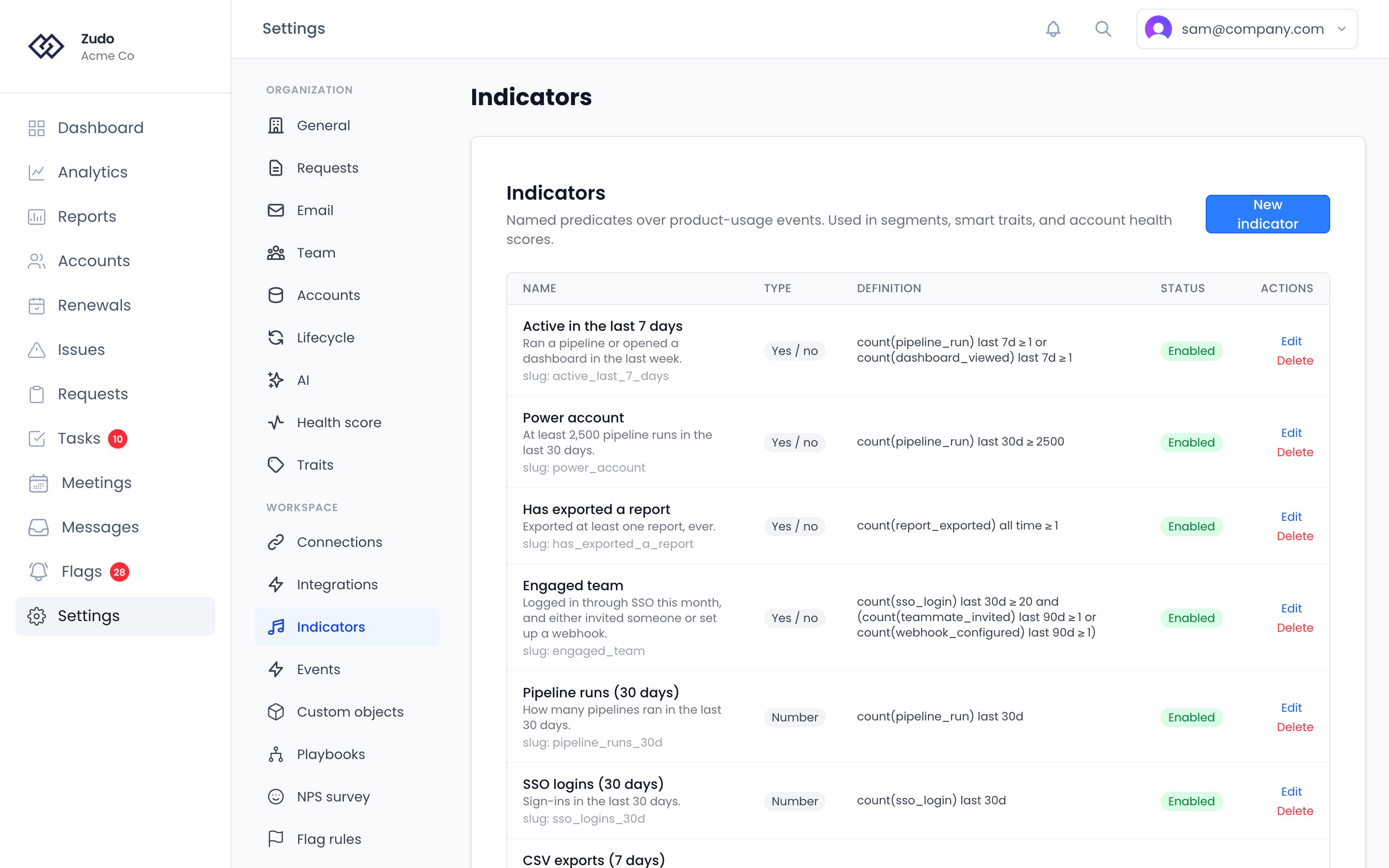
- Active in last 7 days —
count(any_event, last 7d) ≥ 1 - Power user —
count(feature_used, last 30d) ≥ 50 - Has ever exported —
count(export_run, all_time) ≥ 1 - Logins last 30 days —
count(login, last 30d)(returns a number, not yes/no) - Unique users last 7 days —
unique_users(any_event, last 7d)
Result types
Every indicator returns one of two shapes:
Number indicators feed into health-score thresholds (excellent / good / fair / poor); boolean indicators feed in as a true / false score.
Build an indicator
1
Open the builder
Go to Settings → Indicators and click New indicator, or Edit on an indicator you already have. (Org owners
and admins only.)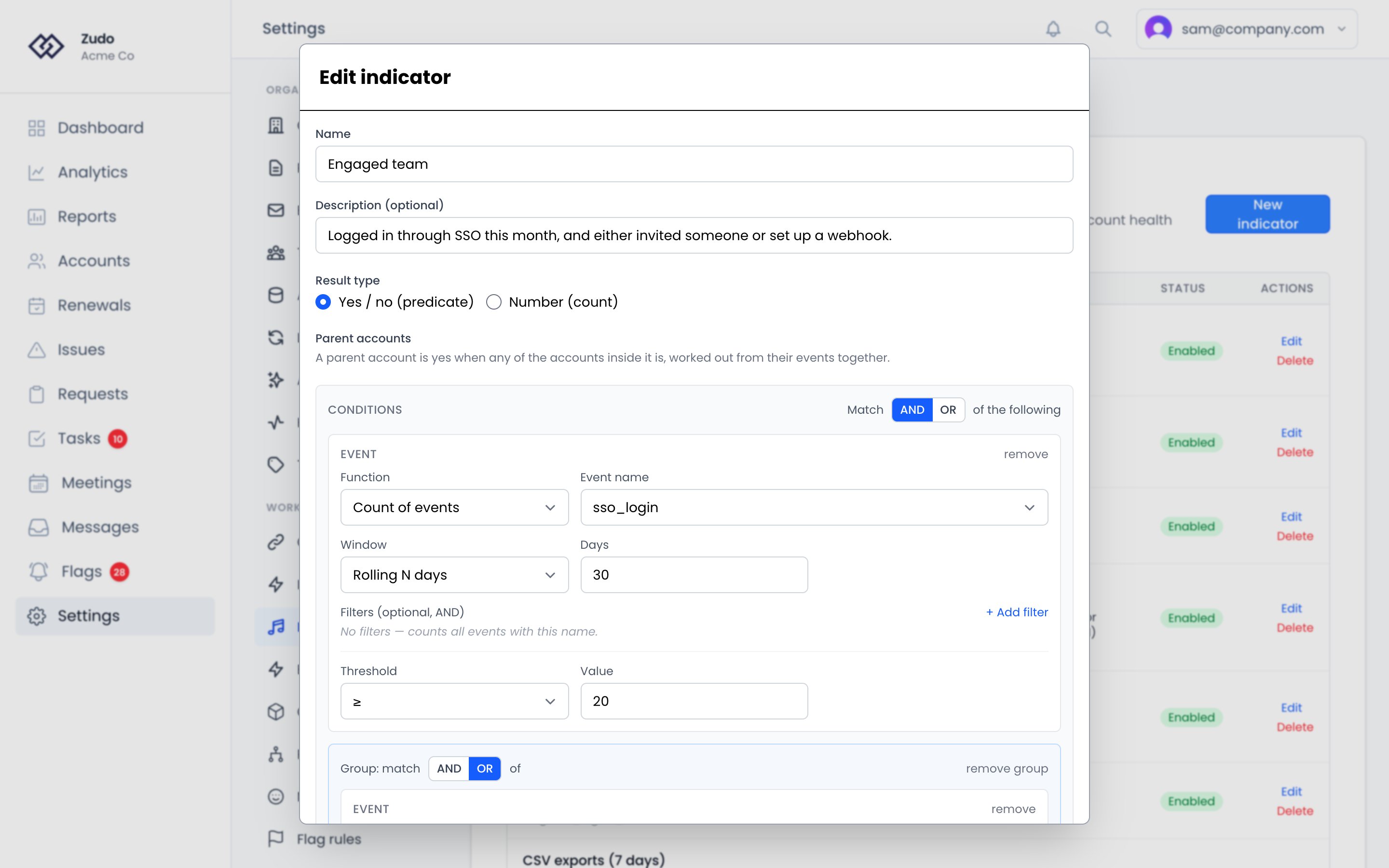
2
Name and describe
Give it a clear name like Power user or Logins last 30 days. Description is optional but helps teammates know
what it captures.
3
Pick a result type
Yes / no (predicate) for binary signals, or Number (count) for raw values you want to graph or threshold
separately.
4
Configure the aggregation
Each event row is an aggregation:
- Function:
Count of events(default),Unique users, orSum of property(requires a property dot-path). - Event name: the exact event name as it appears in your Segment / PostHog data (e.g.
login,Item Viewed). This dropdown lists allowlisted events from your connected sources. - Time window:
Rolling N days(most common),All time, orSince first seen(uses the account’s creation date as the lower bound).
5
Add filters (optional)
Refine which events count by filtering on payload properties — for example, only
feature_used events where
properties.feature == "export". Filters are AND-only and use a dot-path into the original event payload.Filtered indicators read from the event staging table, which is bounded by a 7-day TTL. If you set a window longer
than 7 days on a filtered indicator, only the most recent 7 days of payload-level filtering will be exact —
earlier days fall back to the unfiltered rollup. For most use cases this is fine; if exact long-window filtered
counts matter, prefer indicators without filters.
6
Set a threshold (yes/no only)
For boolean indicators, pick a comparator (
≥, >, ≤, <, =, ≠, between) and a value per event row. The
indicator returns true when the aggregation passes the comparator.7
Combine multiple events (yes/no only)
Boolean indicators can combine more than one event with AND / OR. Click + Add event to add another
aggregation row at the top level — they’re combined with the operator pill (
AND or OR) shown above the rows.For nested logic, click + Add group to start a sub-group with its own operator. One level of nesting is supported,
mirroring how segments work. Example: logged in AND (used export ≥ 5x OR ran a report ≥ 10x) — a top-level
AND with a single OR group inside.Each event row carries its own threshold, so different events can require different counts (e.g. login ≥ 1 AND
export ≥ 5).8
Preview
Click Preview match to see how many of your active accounts currently match the indicator before saving. Useful to
sanity-check the threshold.
9
Save
The indicator becomes available immediately. Values are computed on a 15-minute job, so within ~15 minutes every
account in your org has a fresh value.
Where indicators show up
On every account page
The account’s Indicators & segments tab lists every indicator with the account’s current value, above the segments the account is in and its NPS answers. Each indicator renders as a chip: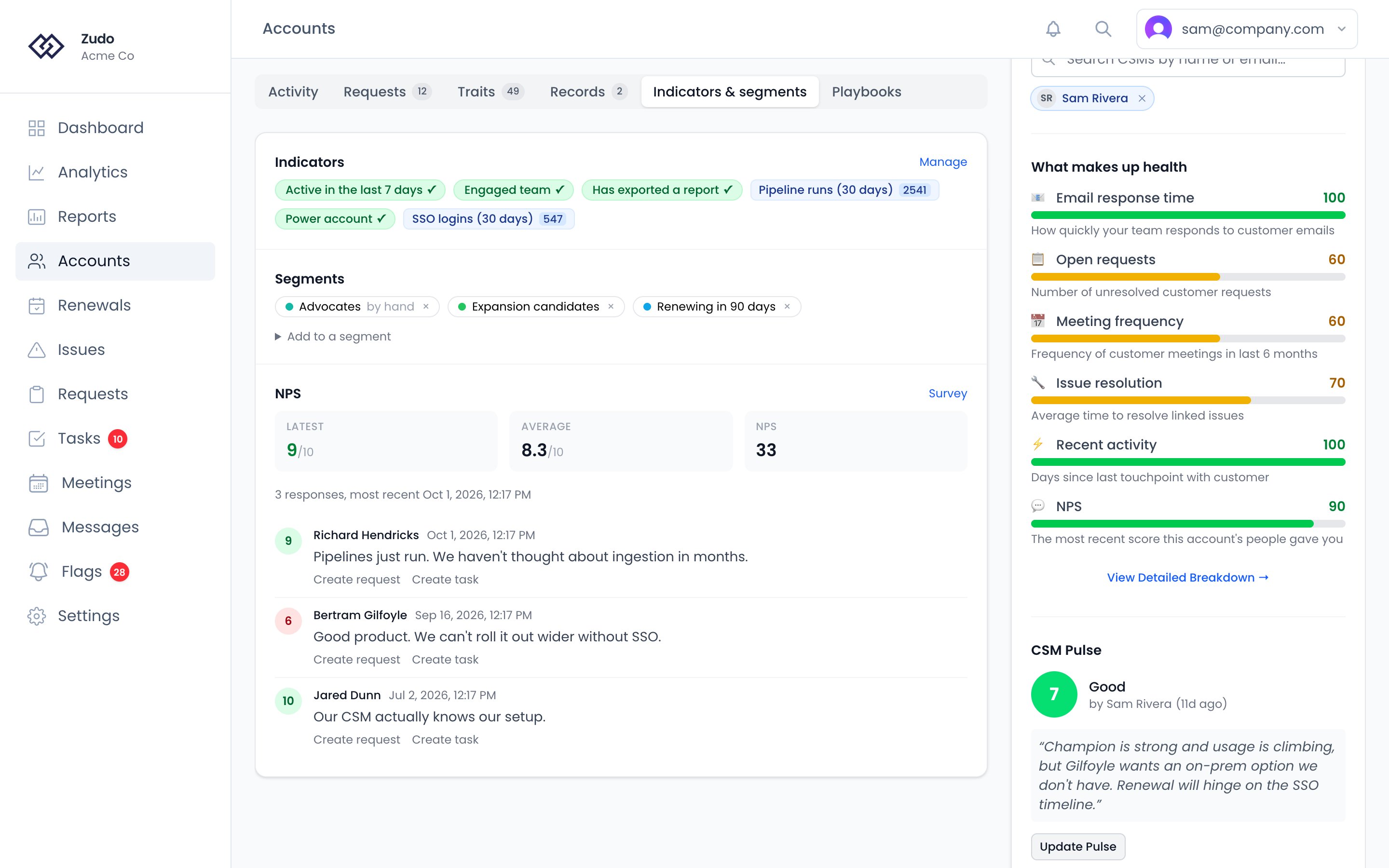
- Yes / no indicators — green chip with a ✓ when true, gray with ✗ when false, yellow when no value has been computed yet.
- Number indicators — labeled badge with the current numeric value.
As columns on the Accounts table
Every enabled indicator is available as an optional column on the main Accounts list. Open the columns menu (top right of the table) and toggle the indicator you want to see. Boolean indicators render as Yes / No chips inline; number indicators render as the value, sortable like any other column. Indicator columns are hidden by default — flipping them on adds them per-user, so your preference doesn’t affect teammates.As filters on the Accounts table
The same indicators show up in the table’s filter menu. Boolean indicators offer is true / is false / is set / not set filters; number indicators offer the full numeric vocabulary (equals, greater than, between, etc.). Filters compose with everything else on the table — combine an indicator filter with a CSM filter, an MRR range, a trait filter, and a segment all at once.
In segments
When building a segment, saved indicators appear under their own Indicators group in the field picker:- Indicator field — references a saved indicator by id. The condition reads the indicator’s current value (boolean or number) and applies an operator. Boolean indicators get boolean operators (
is true,is false,is set); number indicators get the numeric operator set. - Event aggregate field — inline aggregation defined directly on the condition, no saved indicator required. Useful for one-off filters where you don’t want to create a permanent indicator. Same DSL as the indicator builder under the hood.
In smart traits
Smart trait formulas can reference indicators by their slug (auto-generated from the name —power_user, active_last_7_days):
undefined and won’t crash the formula.
Formulas can also read nps.* — what the customer said, beside what they did.
In account health scores
Indicators can contribute to the health score as a single weighted Indicators factor. See health-score config for the setup flow.Parent accounts
A parent account has no product events of its own — they belong to the accounts inside it — so an indicator is worked out from those accounts’ events together. That keeps unique users and rates correct, which adding up each account’s finished value would not. A yes/no indicator is yes for the parent account when any account inside it is yes. For a number indicator you can choose something simpler in the builder, under Parent accounts:
Churned and ignored accounts are left out, unless your organization counts them (Settings → Organization → Parent accounts).
Slugs
Each indicator gets a stable slug derived from its name (lowercase, snake_case, max 60 chars). The slug is what smart-trait formulas reference —indicators.power_user. You can override the auto-generated slug from the builder.
Renaming an indicator does not change its slug. This is intentional: existing formulas keep working when you rewrite the human-readable name.
How values get computed
Indicators are computed in two paths depending on whether your indicator has filters:- Fast path (no filters, function = count or unique_users) — a single SQL aggregation over the daily rollup table. Fast even for orgs with thousands of accounts.
- Slow path (any filter clauses, or function = sum) — scans the event staging table for the time window. Bounded by the 7-day staging TTL.
Disable vs. delete
The Enabled toggle on each indicator stops the compute job from updating its value. Existing values stay in place but get older. Indicators that participate in the health score are silently skipped while disabled — no need to remove them from the health score config. Delete removes the indicator and all its computed values. Smart-trait formulas referencing the slug start returningundefined after delete; segments referencing it stop matching.
Volume notes
- Indicators read from per-account daily rollups. The cost of a single indicator is roughly proportional to (accounts × days in window) but most orgs see this measured in hundreds of milliseconds.
- The
unique_usersfunction is approximate — it sums each day’s distinct-user count without cross-day deduplication. For a strict per-account “unique users in the last 7 days” you’ll see a small over-count when the same user appears on multiple days. Trends are still meaningful; if exact counts matter, file a support request and we can plug in a HyperLogLog sketch. - The All time window doesn’t actually scan all of history when filters are present — it’s bounded by the 7-day staging TTL. Use unfiltered all-time counts (which read directly from the rollup) for true lifetime totals.