
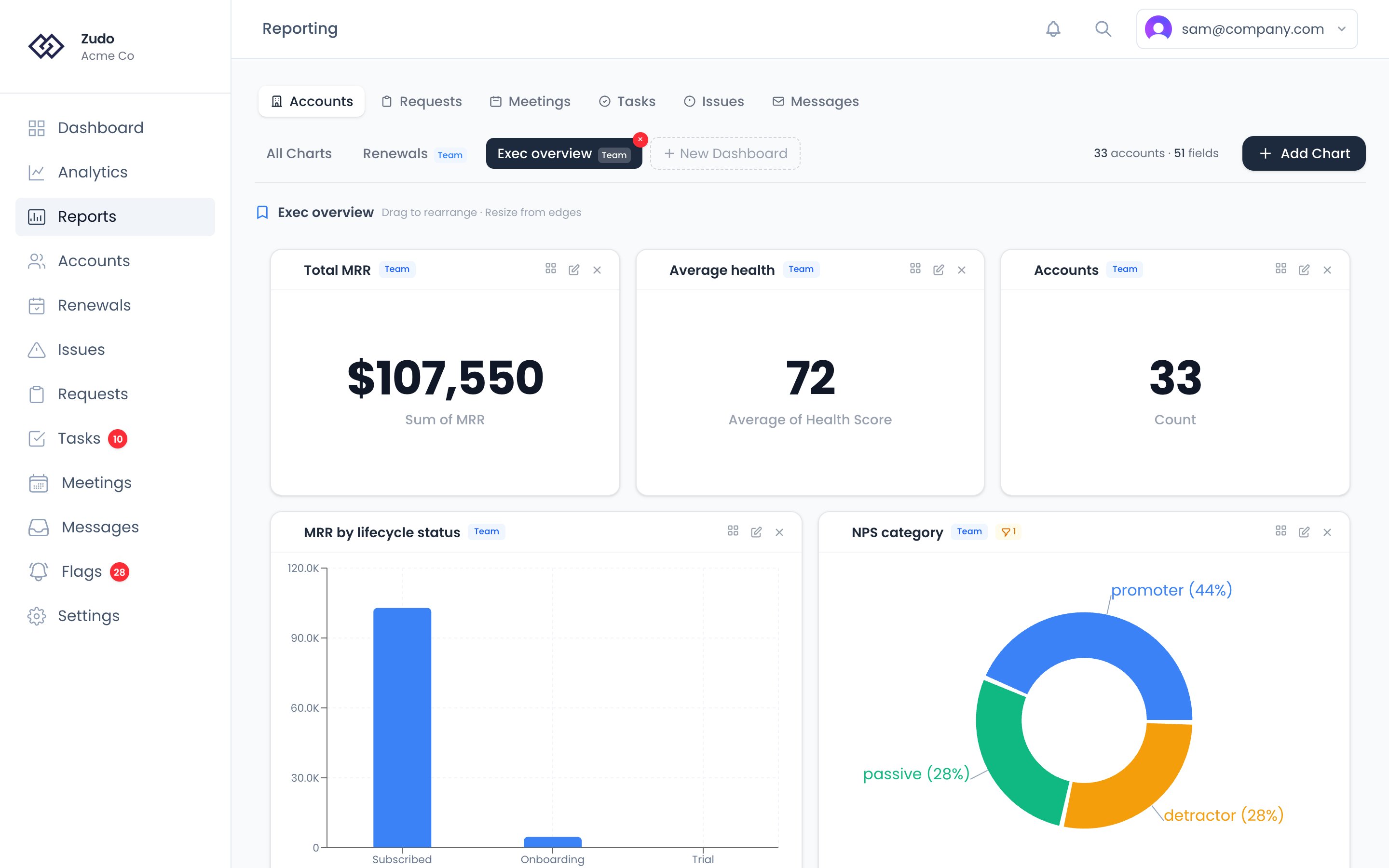
Dashboards hold snapshots of charts. When you add a chart, its full configuration is copied at that moment. If you
later edit the original saved chart, the dashboard copy stays as it was — so dashboards remain stable as you iterate
on individual charts.
Capabilities
- Mix object types — combine account MRR charts, request trends, and task breakdowns on one dashboard
- Custom layout — drag and resize chart cards in the grid; layout changes save automatically
- Personal or team scope — keep a dashboard private or share it with your organization
Creating a dashboard
1
Click + New Dashboard
In the dashboard tab bar at the top of the Custom Reporting page, click + New Dashboard.
2
Name it
Enter a name — “Q2 Board Review”, “Weekly Health Check”, etc.
3
Choose scope
Personal keeps it visible only to you. Team makes it visible to everyone in your organization. Saved charts
matching the scope are auto-added in a two-column layout.
4
Arrange
Drag cards to reorder. Drag the bottom-right corner to resize. Layout saves automatically.