
1
Create your organization
Sign up at zudo.so using email and password, or with Google.Once your email address is verified, Zudo asks you to name your organization. This is your company’s workspace — your accounts, requests, meetings and settings all live inside it, and it is the name your teammates see when you invite them. You become its owner. If your email address is on a company domain, Zudo suggests a name from it; change it to whatever you like. An owner can rename it later under Settings → Organization → General.You can belong to more than one organization, and switch between them from the organization menu in the sidebar. Create additional ones under Settings → Organizations.
If a teammate invited you before you signed up, their invitation is waiting on that same screen. Accept it to join their organization instead of creating your own — that way you see the accounts and requests they already have, rather than starting an empty workspace beside theirs.
2
Set your domains and business hours
Go to Settings → Organization → Email and add your company’s email domains (e.g.
acme.com) under Internal domains. Zudo uses these to tell customer emails apart from internal ones when measuring response time.Then set your Business hours on Settings → Organization → General. Only hours inside this window count toward response time.3
Connect your tools
Add the tools your team uses. The most impactful ones to connect first: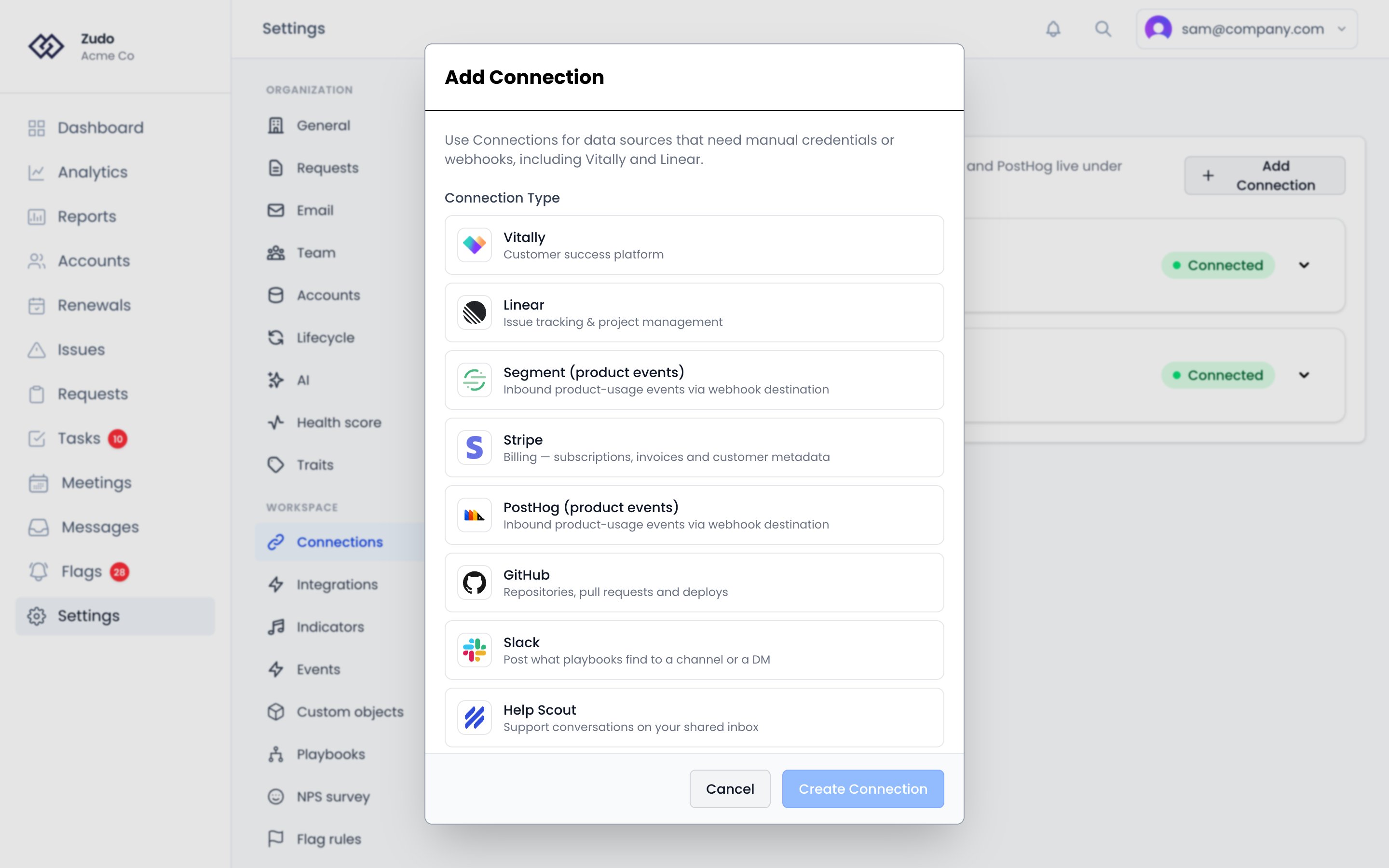
- Vitally — syncs your customer accounts so you don’t have to add them manually
- Gmail — starts tracking email threads and response times
- Fireflies.ai — pulls in meeting recordings, transcripts, and action items
- Linear — links engineering issues to customer requests
4
Add your first account
If you connected Vitally, your accounts may already be synced. Otherwise, go to Accounts and click + Add Account.Fill in the account name and MRR. MRR feeds into request impact scoring across your portfolio, so add it even if it’s approximate.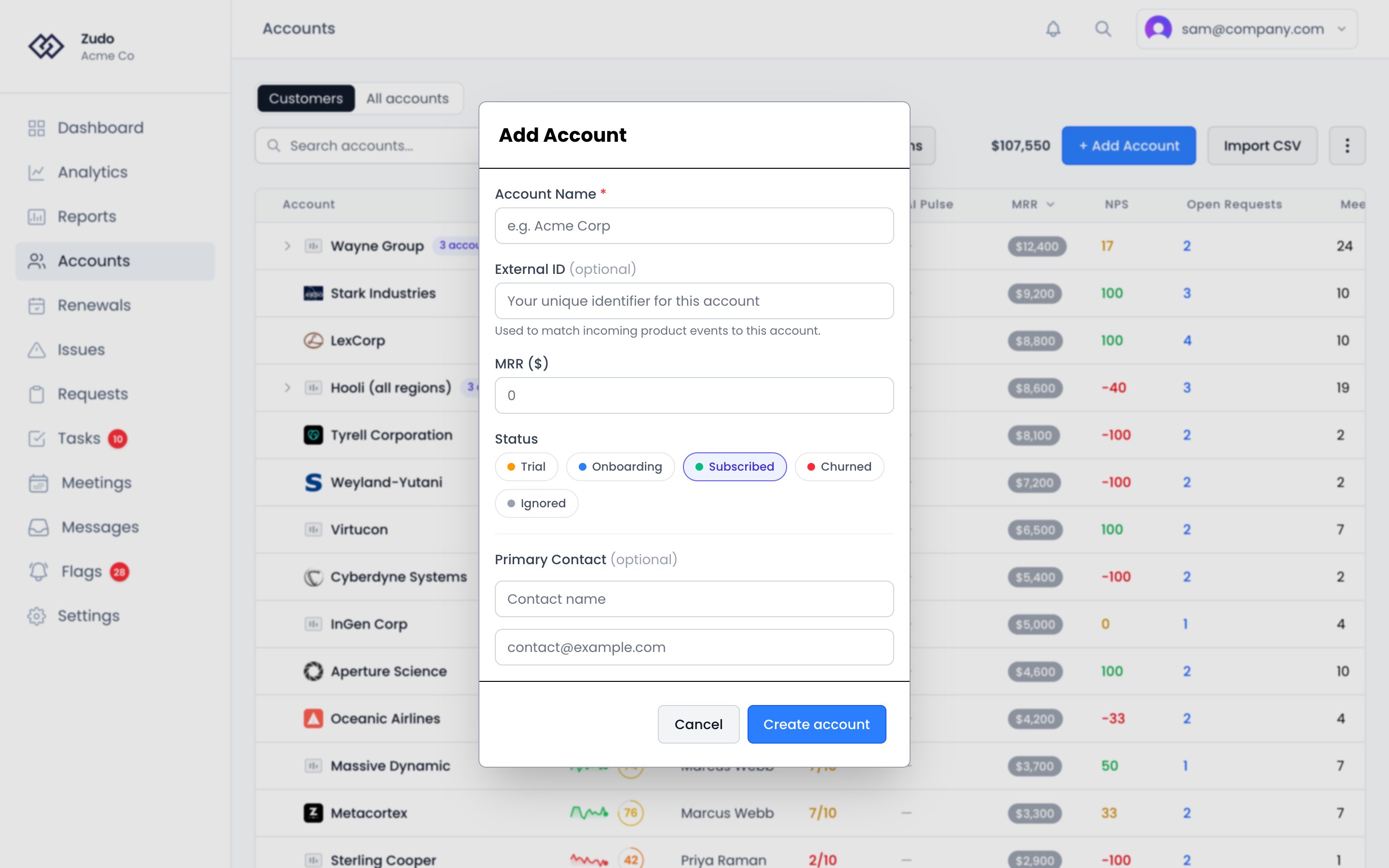
5
Invite your team
Go to Settings → Organization → Team. Under Invite Member, enter their email address, pick a role and click
Invite. They’ll get a link to join your organization. Once they accept, they see the same accounts, requests, and
settings.
6
Check your first health score
Health scores calculate on a nightly schedule. After your first cycle, open any account to see the 0–100 score and a breakdown of the five factors driving it.If the automated score doesn’t match what you know about the account, set a CSM Pulse — a manual 1–10 override with a required note explaining your reasoning. Learn more about CSM Pulse →
What to do next
Accounts
Understand account pages, timelines, contacts, and custom traits.
Meeting Prep
Generate an AI briefing before your next customer call.
Requests
Capture feature requests and let impact scoring prioritize them.
Custom Reporting
Build charts and dashboards across all your data.